In this post, we will show you the Peripeteia Beginner Guide Wiki & Walkthrough. You will also learn about controls and weapons. Peripeteia, like most games, utilizes fairly basic controls found in most other games.
Peripeteia Beginner Guide Wiki & Walkthrough
Game Controls Guide
C Key – Augments Activation
Tap C to activate your selected augment. If you hold it down, a menu pops up, letting you pick which augment you want by moving your mouse. It’s a quick and easy way to switch things up on the fly.
Z Key – Fire Mode Selection
On certain firearms, pressing Z lets you cycle through fire modes: semi-auto, burst, full-auto, or safe mode. If you hold Z and move your mouse up or down, you can smoothly switch between modes without having to tap the key multiple times.
Left Alt – Fluid Leaning
Holding Left Alt lets you lean at finer angles, perfect for peeking over boxes or under desks without exposing yourself too much.
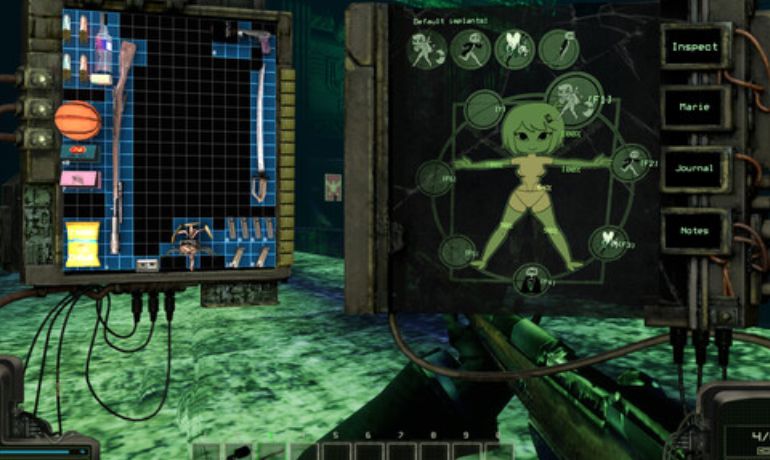
Tab Key – Inventory Access
Press Tab to open your inventory. You’ll be in and out of this menu a lot, so get used to reaching for it quickly.
Q, E, F Keys – Inventory Management
After clicking an item in your inventory with the left mouse button, you can use Q, E, and F to move it around within the grid. This helps you organize your loot and make the most of your space.
Mouse Controls
- Left Mouse Button: Picks up items in your inventory or fires your weapon.
- Right Mouse Button: Lets you do different actions depending on what you’re interacting with—eat food, inspect gear, remove magazines, etc. When holding a gun, it lets you aim down sights.
Function Keys – Quick Augments
The F1-F7 keys are shortcuts for activating different augments, so you don’t always have to bring up the C menu.
F10 & F11 – Quick Save & Load
- F10: Quick Save
- F11: Quick Load (Be careful—you don’t want to accidentally load an old save and lose progress!)